Tour

Every screen, in light and dark.

Each image below is a real capture of Docket running locally against fictional data for StrataForge Robotics, a made-up company. Switch the site theme and the screenshots follow.

Open cards

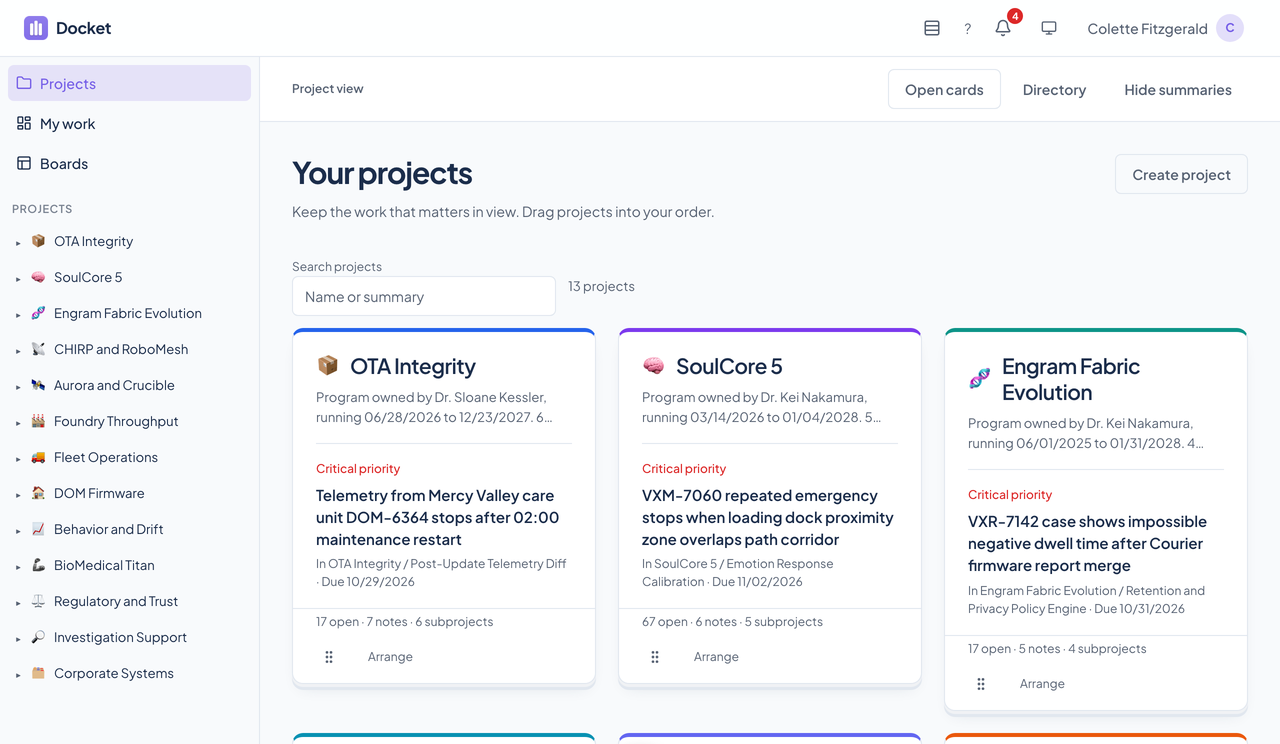
Docket's Open cards page: thirteen project cards, each with an icon, a summary, a flagged task such as critical priority or overdue, and counts of open tasks, notes, and subprojects.Docket's Open cards page: thirteen project cards, each with an icon, a summary, a flagged task such as critical priority or overdue, and counts of open tasks, notes, and subprojects.
One card per project. Each names the most urgent open task in the project and its subprojects, with the reason, and counts open tasks, notes, and subprojects. Enlarge to see the full screen.

Directory

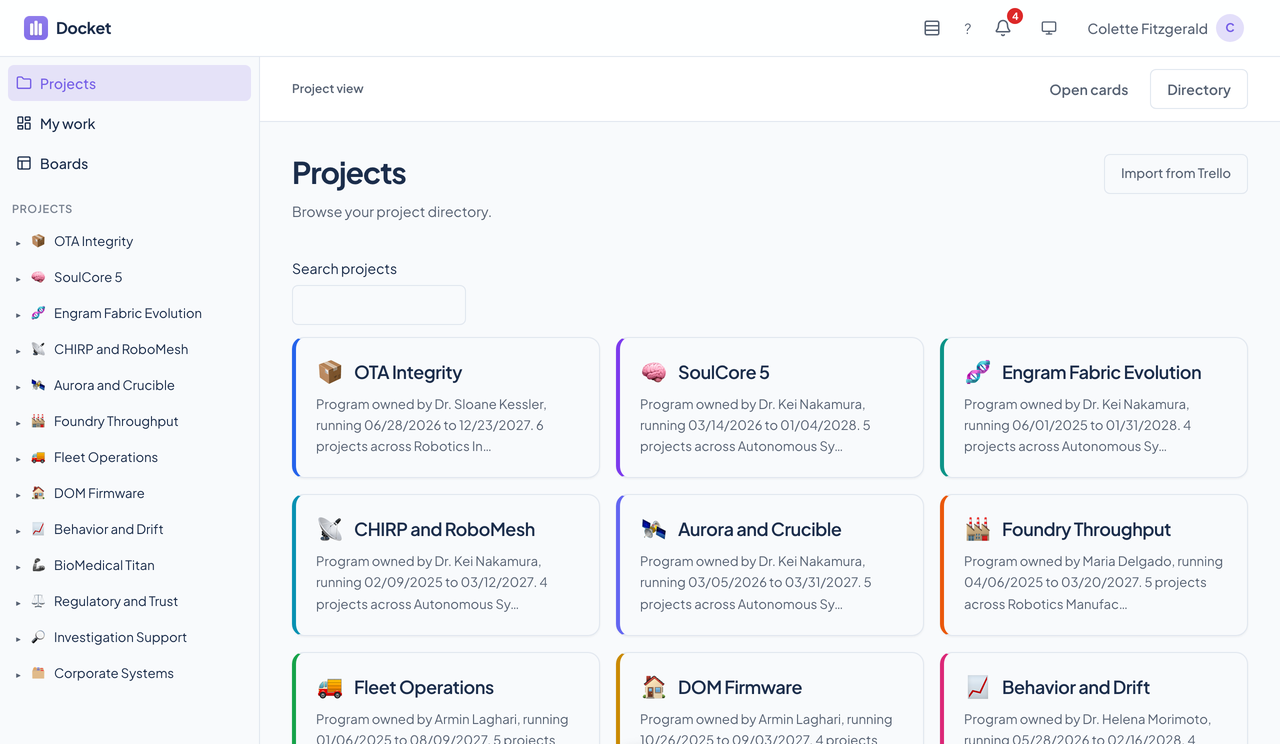
Docket's Directory page: the same thirteen projects as plain cards with summaries, a search box, a Create project tile, and an Import from Trello button.Docket's Directory page: the same thirteen projects as plain cards with summaries, a search box, a Create project tile, and an Import from Trello button.
The classic project pages, with a button to import from Trello. Enlarge to see the full screen.

A project's tasks

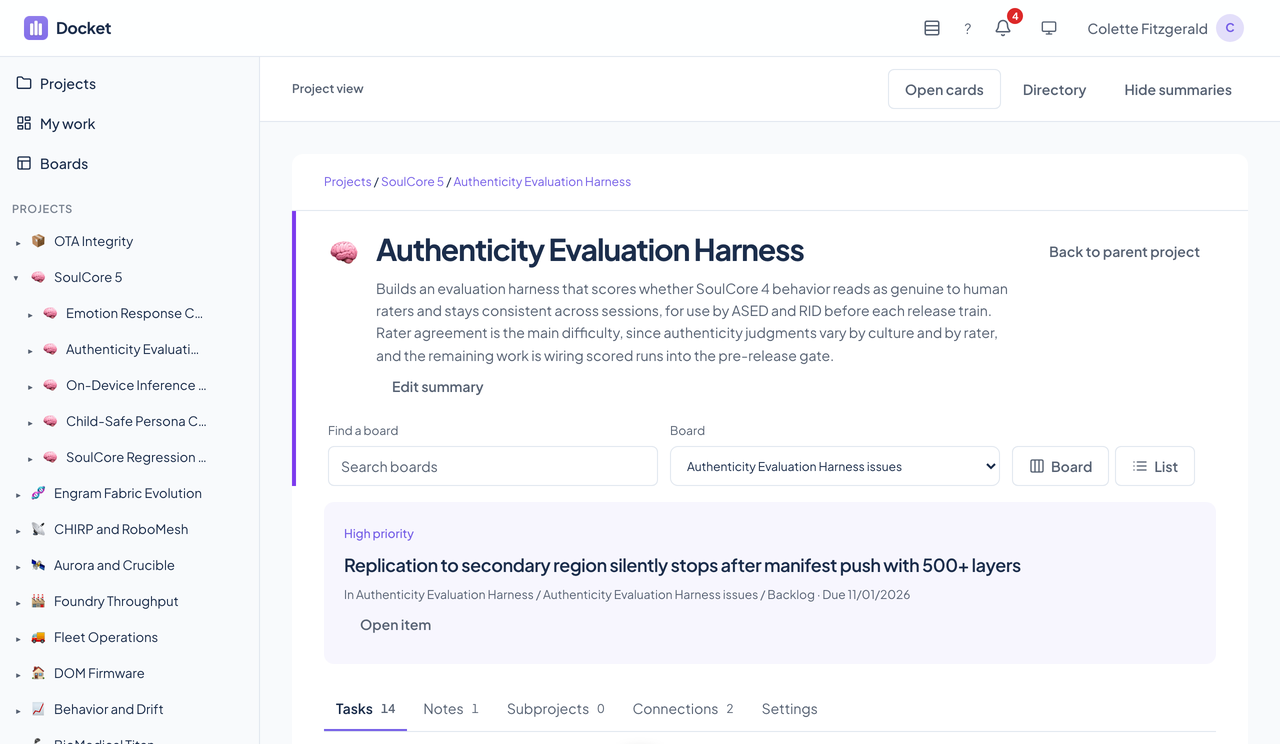
A Docket project workspace on its Tasks tab: the project's summary, its most urgent task, tabs for Tasks, Notes, Subprojects, Connections, and Settings, and a list of active tasks.A Docket project workspace on its Tasks tab: the project's summary, its most urgent task, tabs for Tasks, Notes, Subprojects, Connections, and Settings, and a list of active tasks.
Active tasks by default, with a switch for completed and canceled work and for subproject tasks. Enlarge to see the full screen.

Subprojects

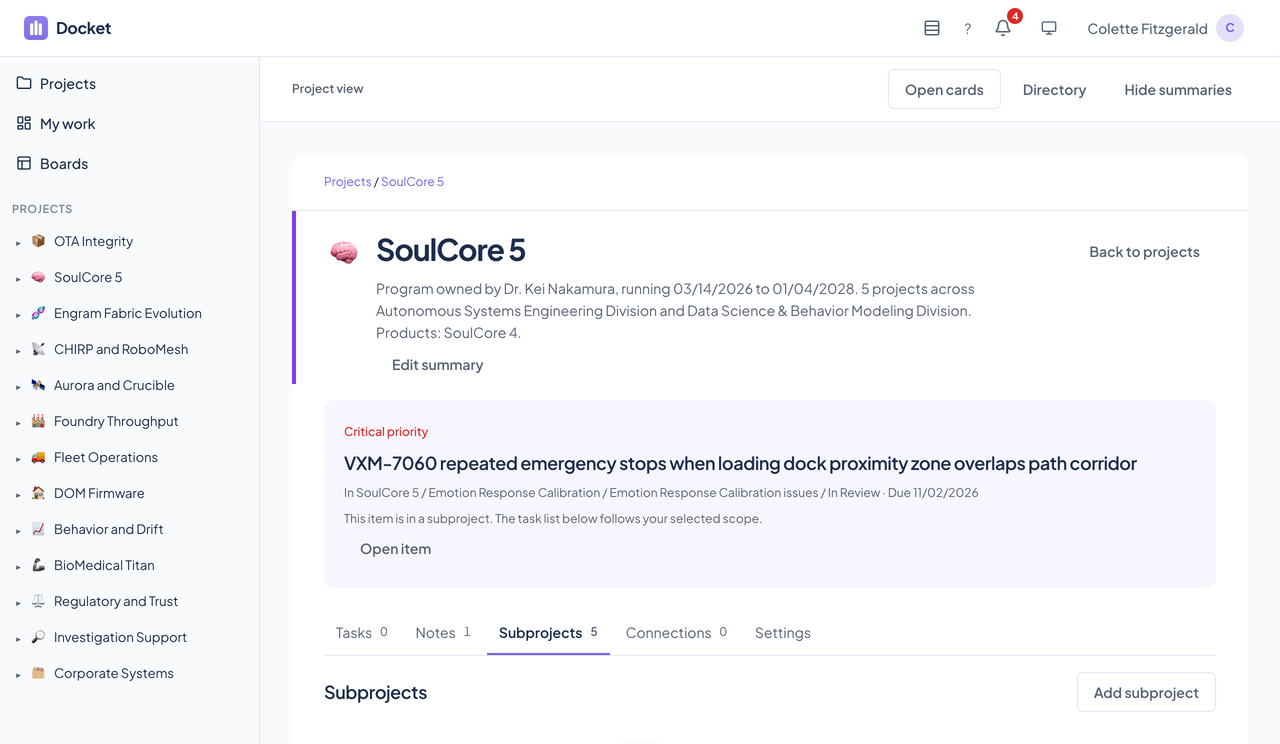
The Subprojects tab of the SoulCore 5 project: the project's summary and most urgent task, and five nested project cards, each with its own summary, flagged task, and open and note counts.The Subprojects tab of the SoulCore 5 project: the project's summary and most urgent task, and five nested project cards, each with its own summary, flagged task, and open and note counts.
The projects nested under this one, as cards of their own, each with its most urgent task. Enlarge to see the full screen.

Private notes

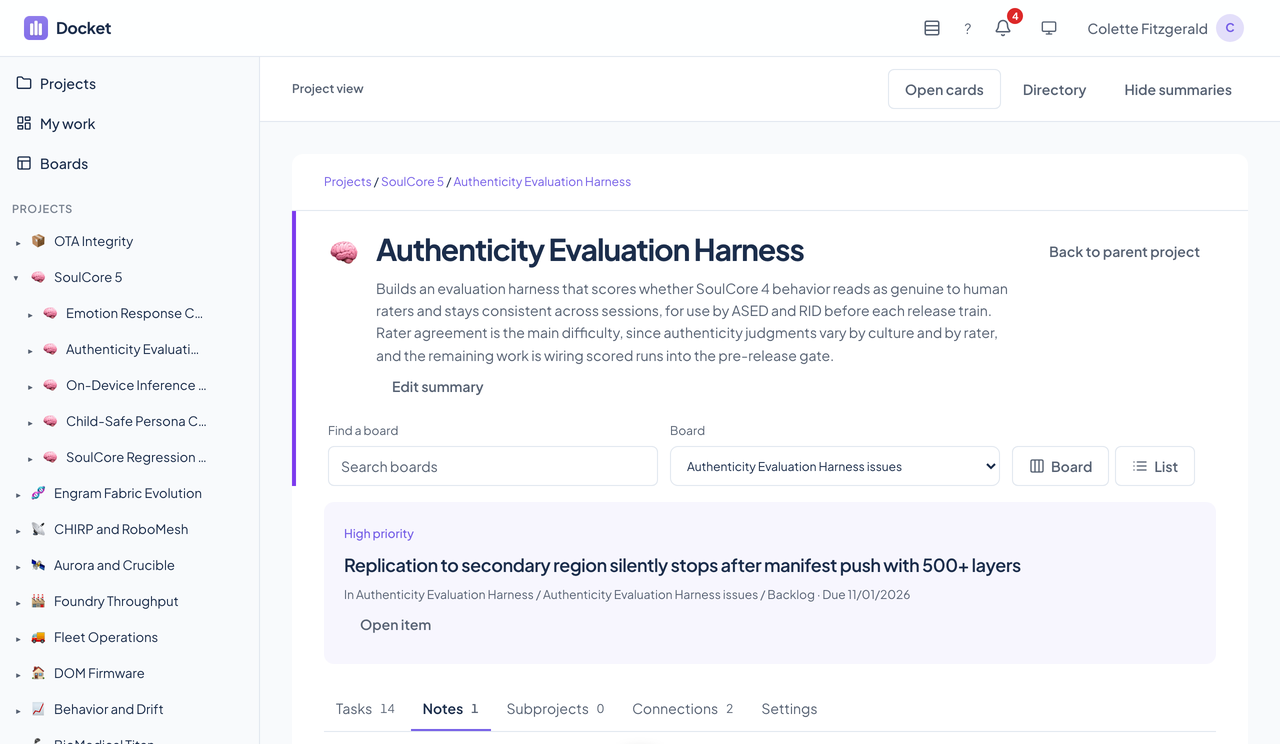
The Notes tab of a Docket project showing one private note, a plan with a lead, a team, a budget, and dated milestones.The Notes tab of a Docket project showing one private note, a plan with a lead, a team, a budget, and dated milestones.
Notes are visible only to their author, even in a shared project. Enlarge to see the full screen.

Connections

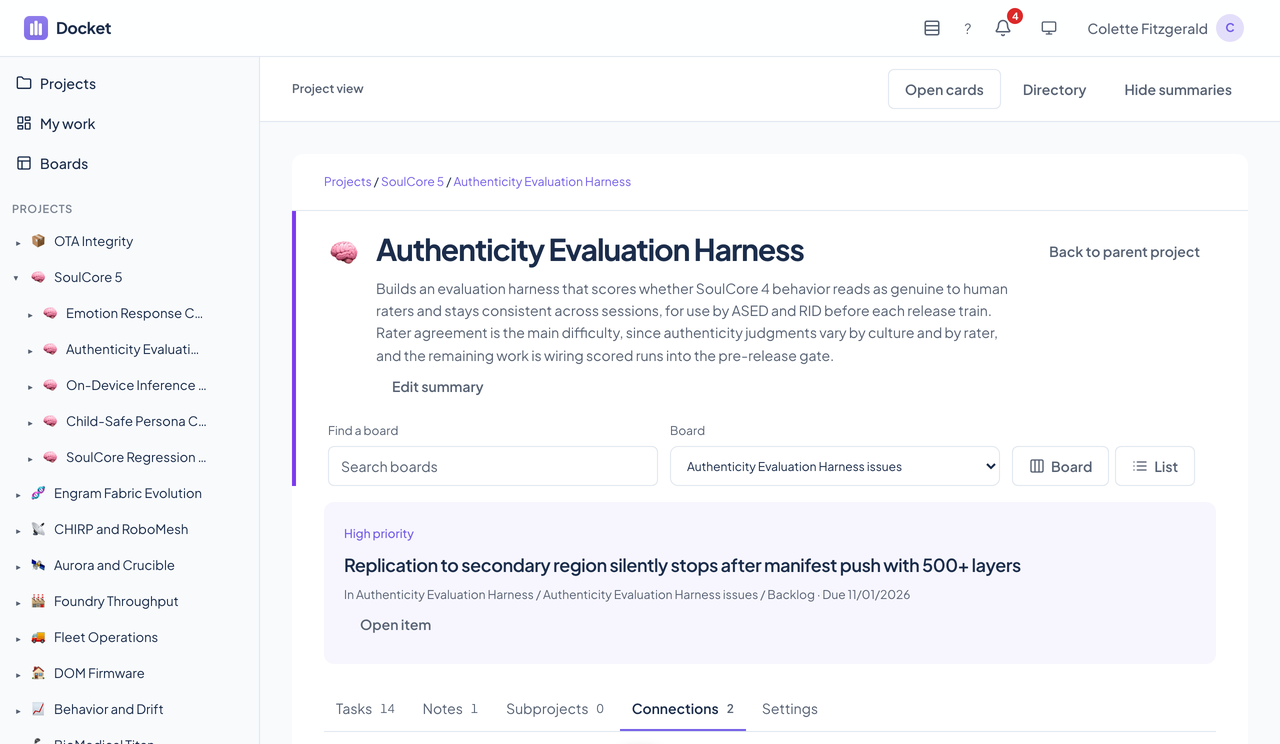
The Connections tab of a Docket project listing two linked sources, each with Preview source and Disconnect buttons.The Connections tab of a Docket project listing two linked sources, each with Preview source and Disconnect buttons.
Links from a project to outside sources. Context loads only when you choose Preview or Refresh. Enlarge to see the full screen.

Project settings

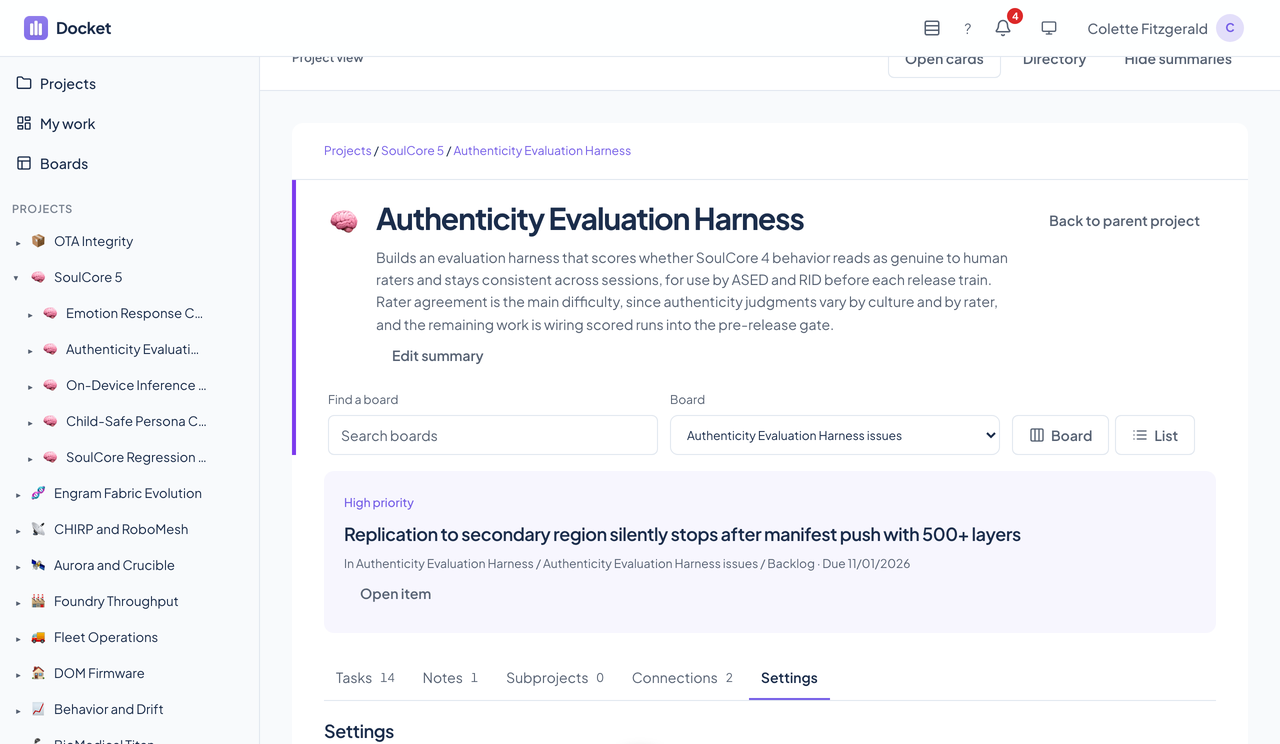
The Settings tab of a Docket project with Board workflow settings open: a Create a task board button, an Existing board menu, and Action column and Completed column menus, with a note that column names do not determine completion.The Settings tab of a Docket project with Board workflow settings open: a Create a task board button, an Existing board menu, and Action column and Completed column menus, with a note that column names do not determine completion.
Board workflow settings, open: you choose the action column and the completed columns explicitly, because column names never decide what counts as done. Enlarge to see the full screen.

Boards

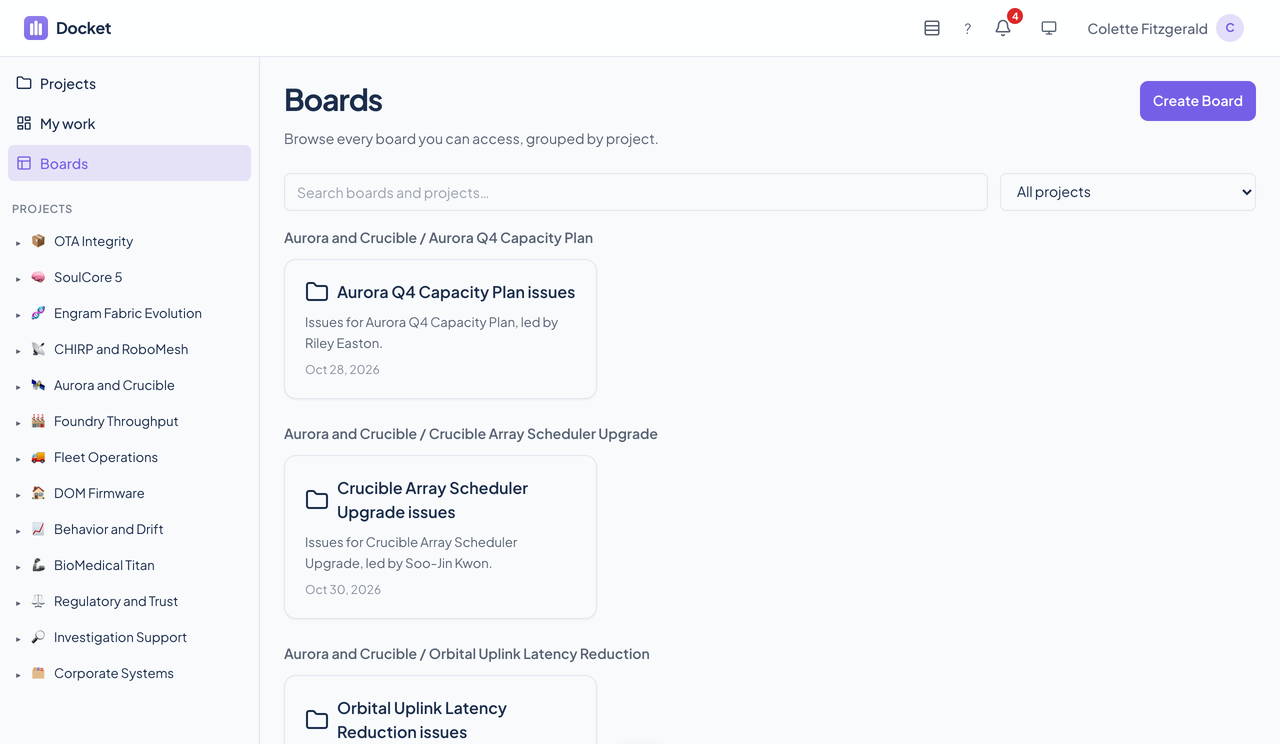
Docket's Boards page: a Create Board button, a search box, a project filter, and board cards grouped under their parent projects.Docket's Boards page: a Create Board button, a search box, a project filter, and board cards grouped under their parent projects.
Every board you can reach, grouped by project, with a search box and a project filter. Enlarge to see the full screen.

A board

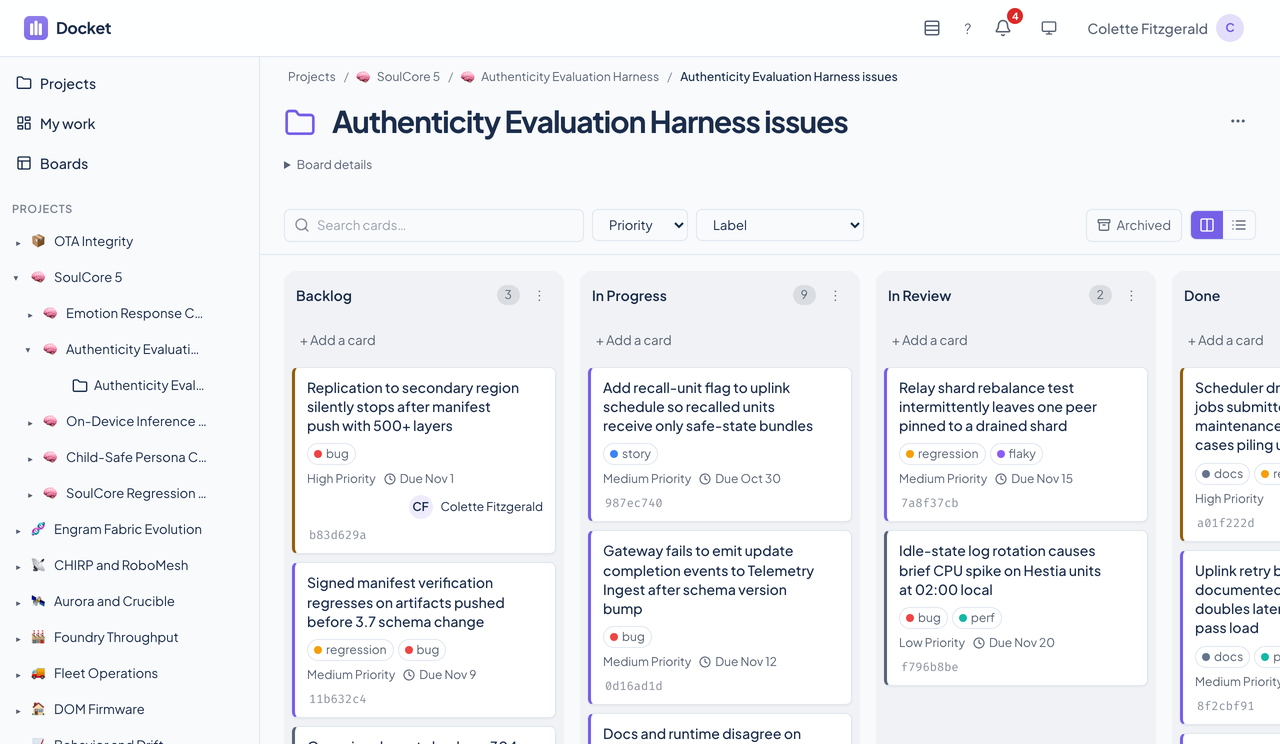
Docket's Kanban board named Issue board with five columns of cards, each card showing labels, a priority, and a due date, and a search box with priority and label filters.Docket's Kanban board named Issue board with five columns of cards, each card showing labels, a priority, and a due date, and a search box with priority and label filters.
Kanban columns for the issue board: Backlog, In Progress, In Review, Done, and Won't Fix, with labels, priority, and due dates on each card. Enlarge to see the full screen.

The same board as a list

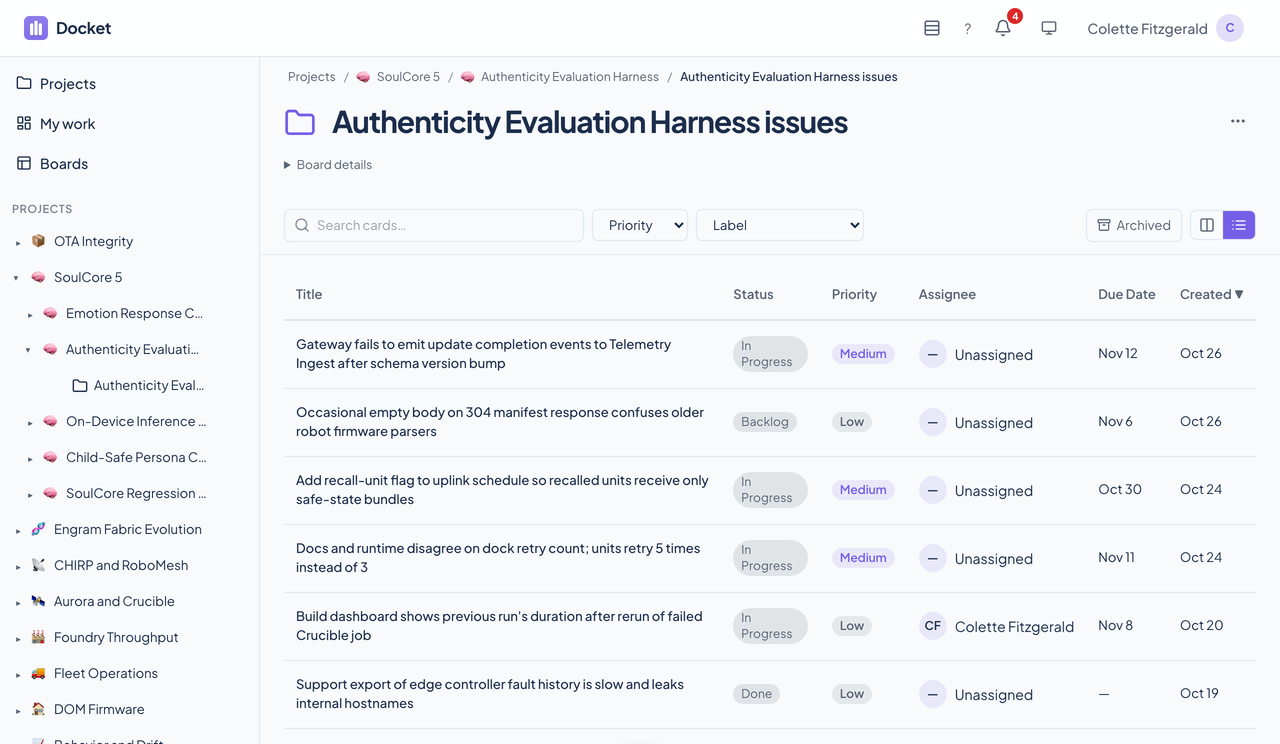
Docket's list view of the Issue board: a table of cards with title, status, priority, assignee, due date, and created date columns, sorted by created date.Docket's list view of the Issue board: a table of cards with title, status, priority, assignee, due date, and created date columns, sorted by created date.
A sortable table of the same cards: status, priority, assignee, due date, and creation date. Enlarge to see the full screen.

My work

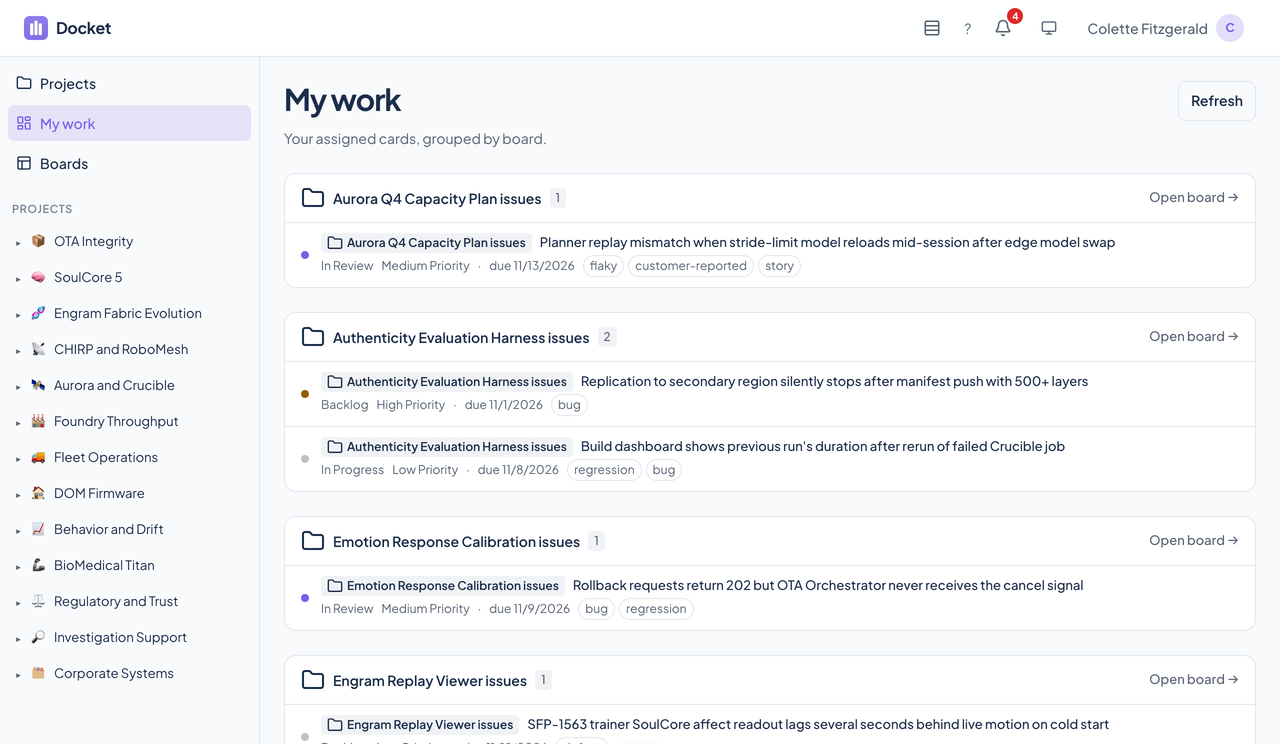
Docket's My work page: boards that hold cards assigned to the current user, each card with its status, priority, due date, and labels, and an Open board link.Docket's My work page: boards that hold cards assigned to the current user, each card with its status, priority, due date, and labels, and an Open board link.
The cards assigned to you, grouped by board, each with its status, priority, due date, and labels. Enlarge to see the full screen.

A task, with comments

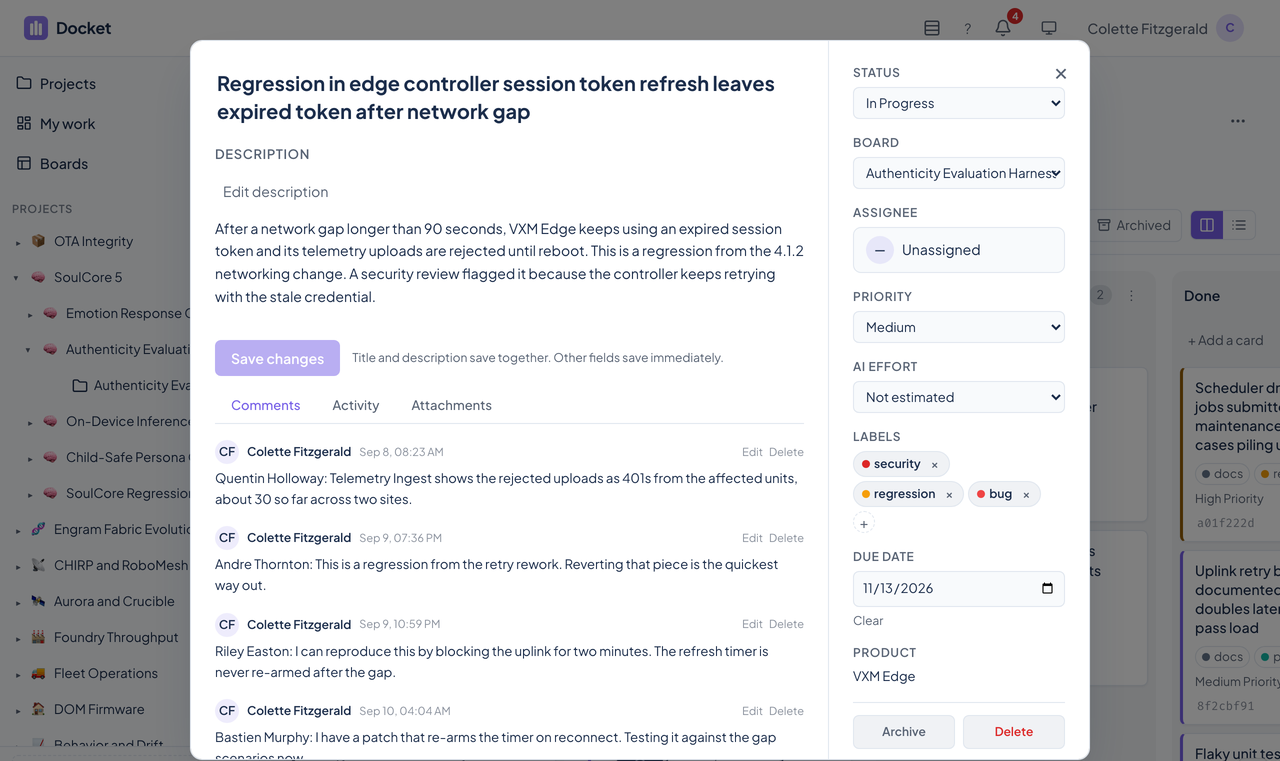
A task dialog over the board: a title, an Edit description control, the description, a Save changes button, tabs for Comments, Activity, and Attachments, and a side panel of fields, with four comments below.A task dialog over the board: a title, an Edit description control, the description, a Save changes button, tabs for Comments, Activity, and Attachments, and a side panel of fields, with four comments below.
The task opens over the board. Status, board, assignee, priority, AI effort, labels, and due date sit beside the description and comments. Enlarge to see the full screen.

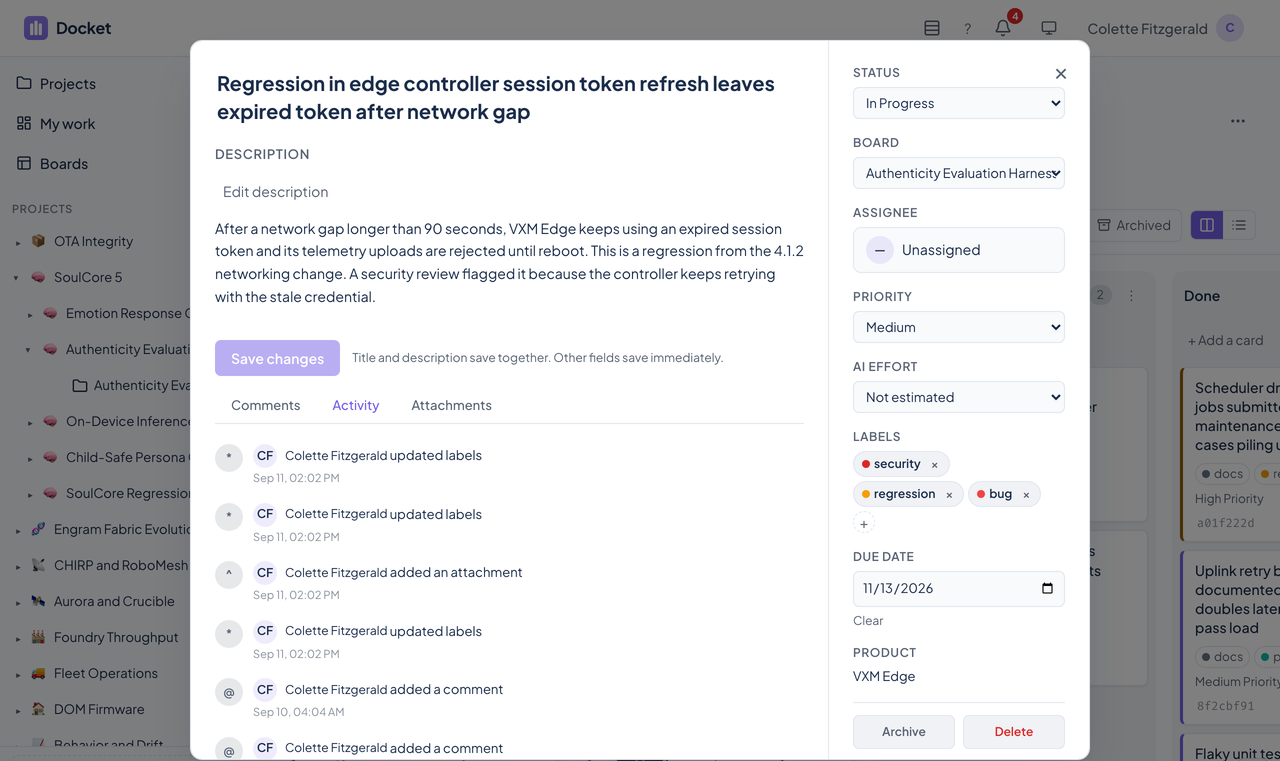
Activity

The Activity tab of a task dialog listing the changes made to it: an attachment, label updates, comments, and the card's creation.The Activity tab of a task dialog listing the changes made to it: an attachment, label updates, comments, and the card's creation.
Every change on the task, newest first. Enlarge to see the full screen.

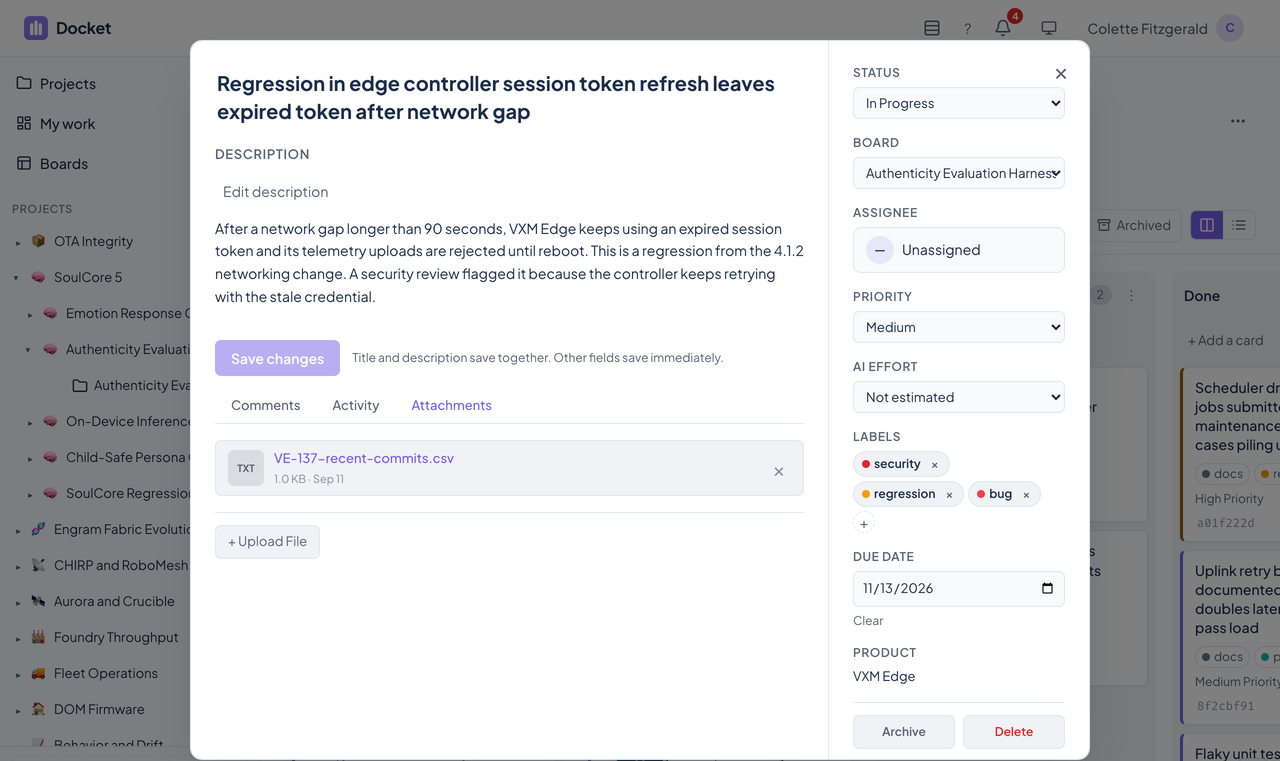
Attachments

The Attachments tab of a task dialog showing one attached CSV file with its size and date, and an Upload File button.The Attachments tab of a task dialog showing one attached CSV file with its size and date, and an Upload File button.
Files up to 10 MB, with an Upload File button. Enlarge to see the full screen.

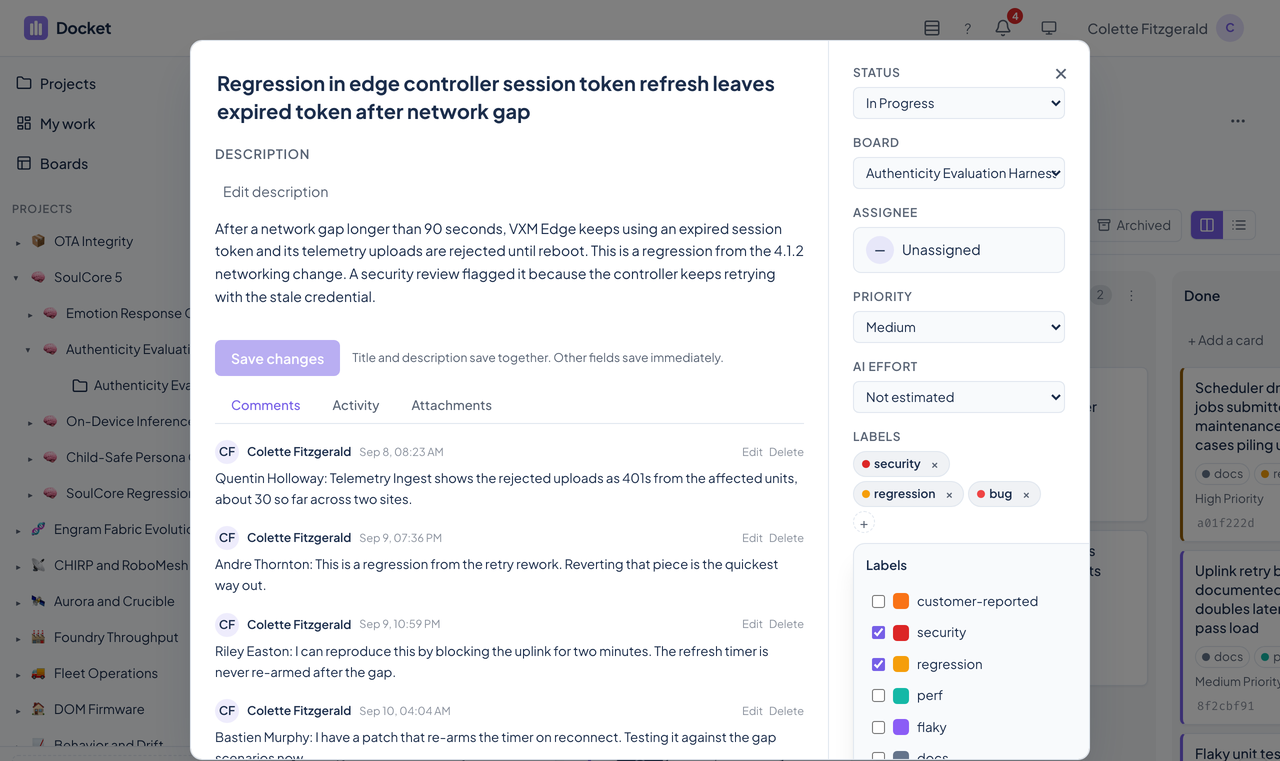
Labels

A task dialog with the label picker open: the board's labels with checkboxes, and a Create Label form with a name field and a row of color swatches.A task dialog with the label picker open: the board's labels with checkboxes, and a Create Label form with a name field and a row of color swatches.
Labels belong to a board. Pick from the board's labels or make a new one with a color. Enlarge to see the full screen.

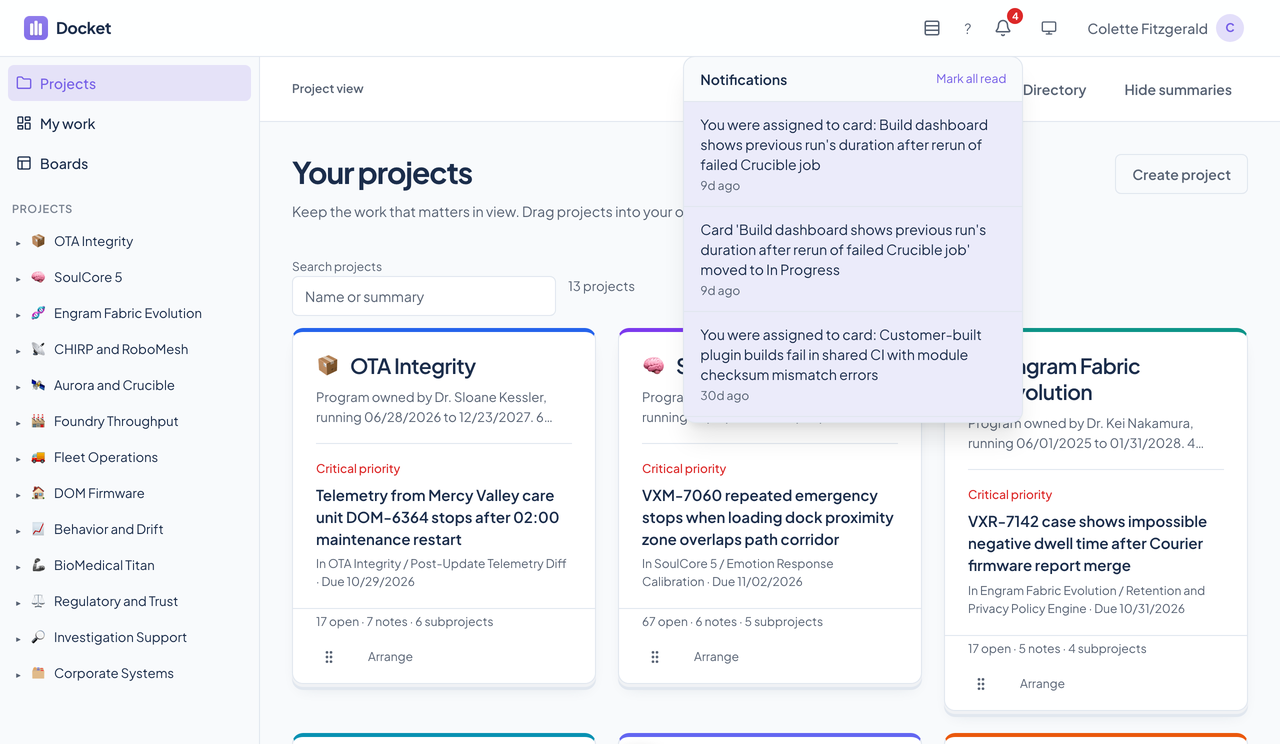
Notifications

Docket's Open cards page with the notifications panel open, listing assignments and a card move, and a Mark all read link.Docket's Open cards page with the notifications panel open, listing assignments and a card move, and a Mark all read link.
The bell shows an unread count. Open it to see assignments and moves, and mark them all read. Enlarge to see the full screen.

Import from Trello

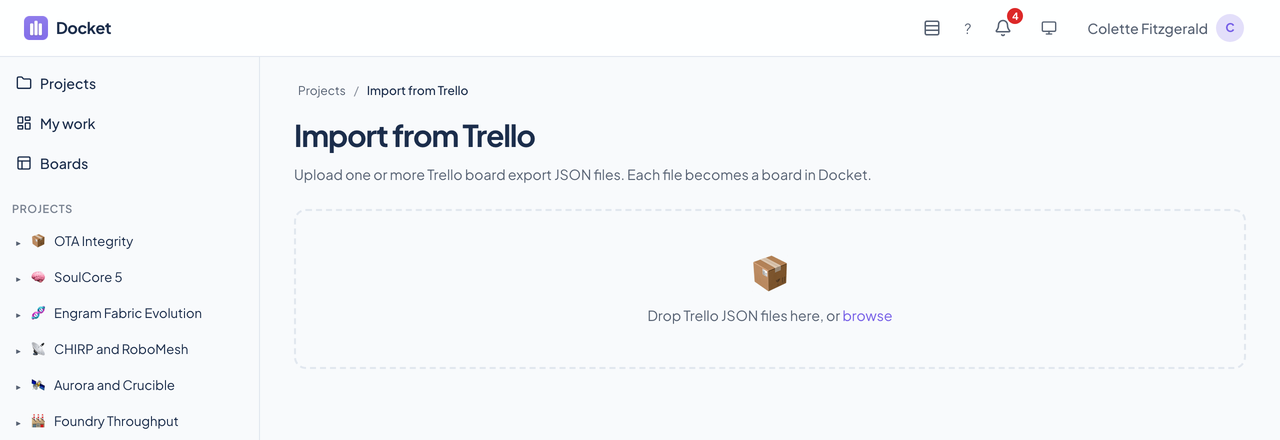
Docket's Import from Trello page: a dashed drop zone that reads Drop Trello JSON files here, or browse.Docket's Import from Trello page: a dashed drop zone that reads Drop Trello JSON files here, or browse.
Drop one or more Trello JSON exports. Each file becomes a board. Enlarge to see the full screen.